
Free church presentation software
Set it up in preview, then GO LIVE
Slides, hymnals, video, the Bible and timers on the second screen, with the same two-step flow as EasyWorship. Free, no accounts, open source.
Windows, macOS and Linux (experimental) · version 2.2.0-beta.5
Features
What a Saturday or Sunday morning throws at you, handled.
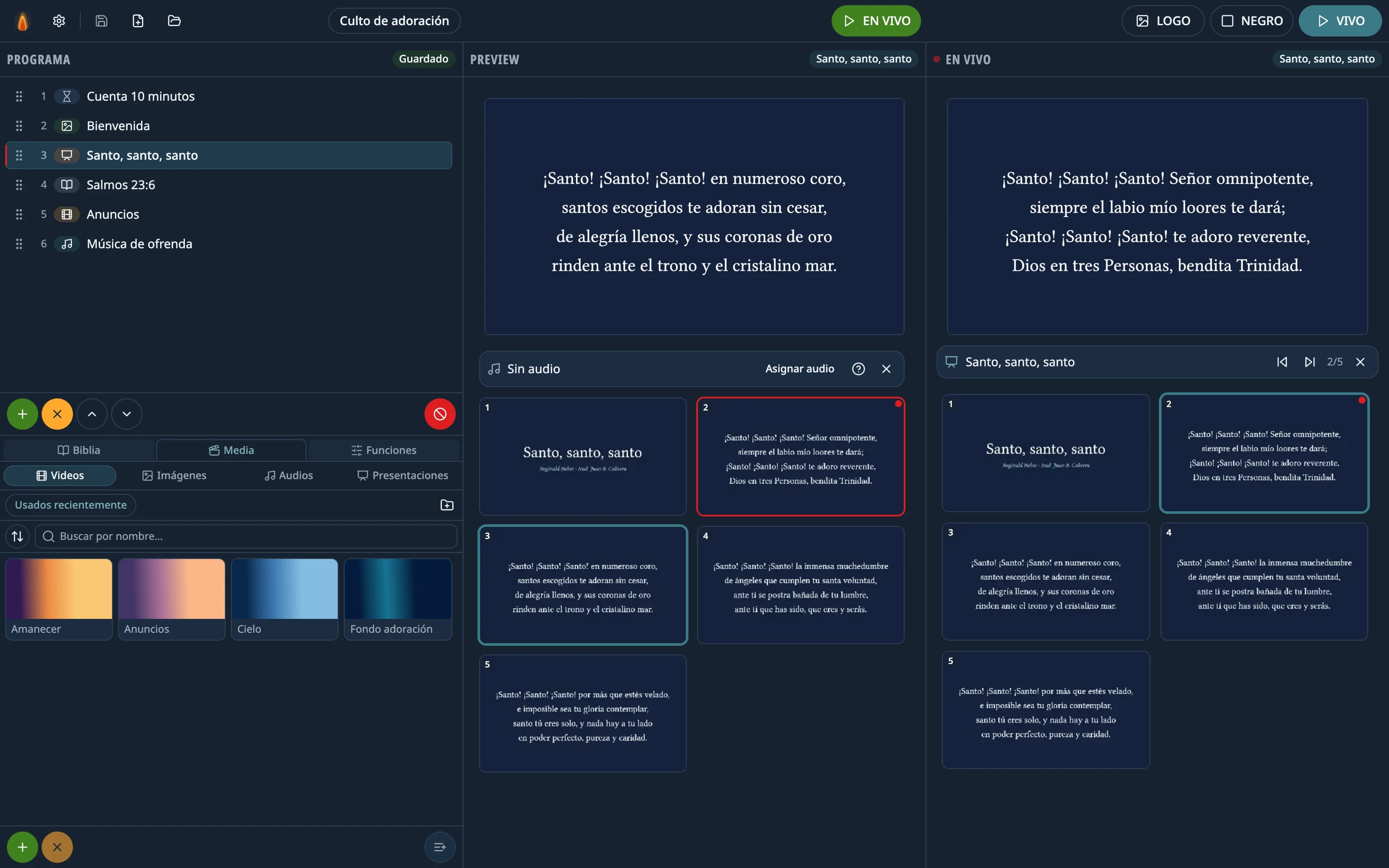
- Presentations
Your slides and hymnals, exactly as you made them
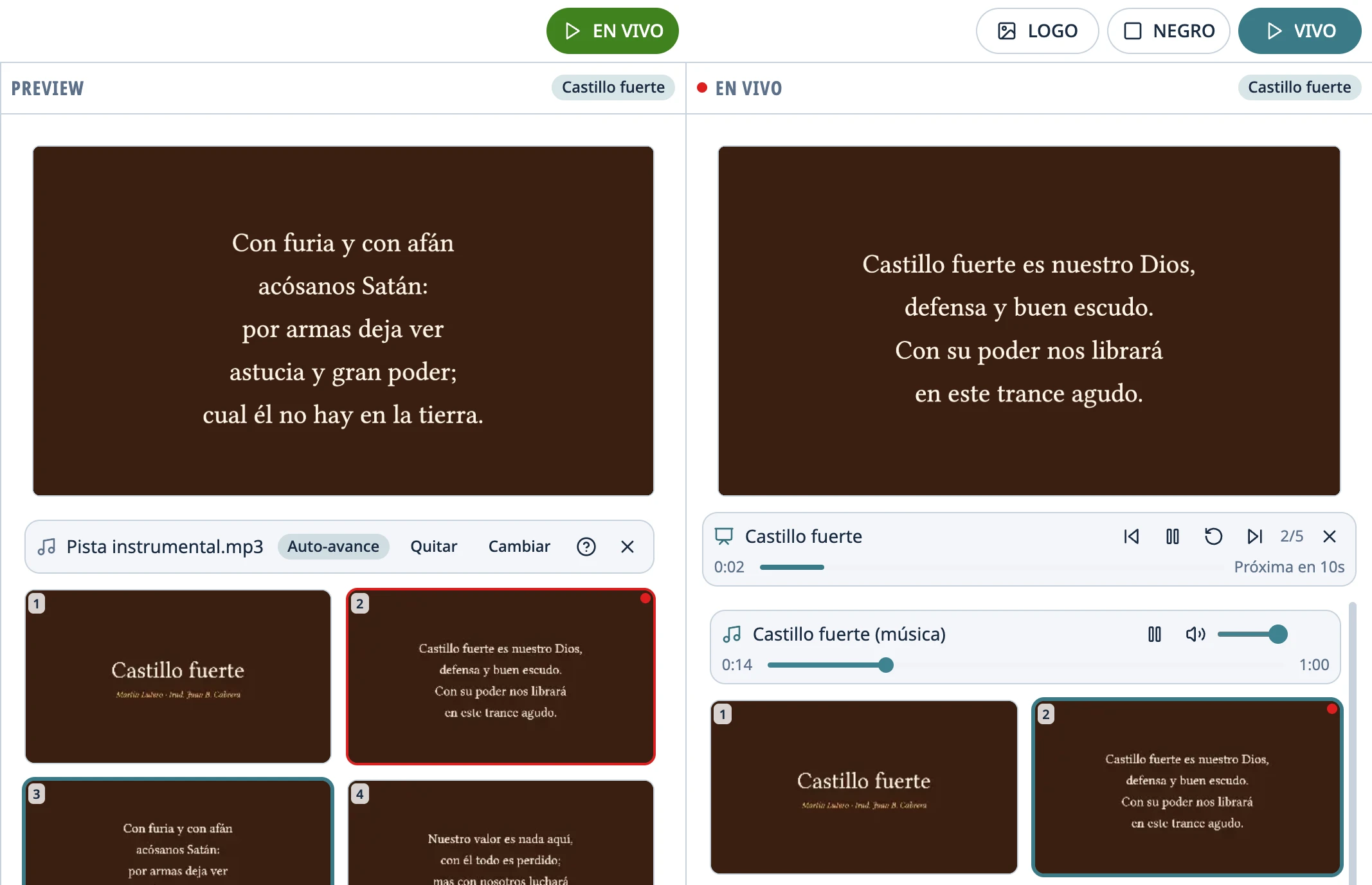
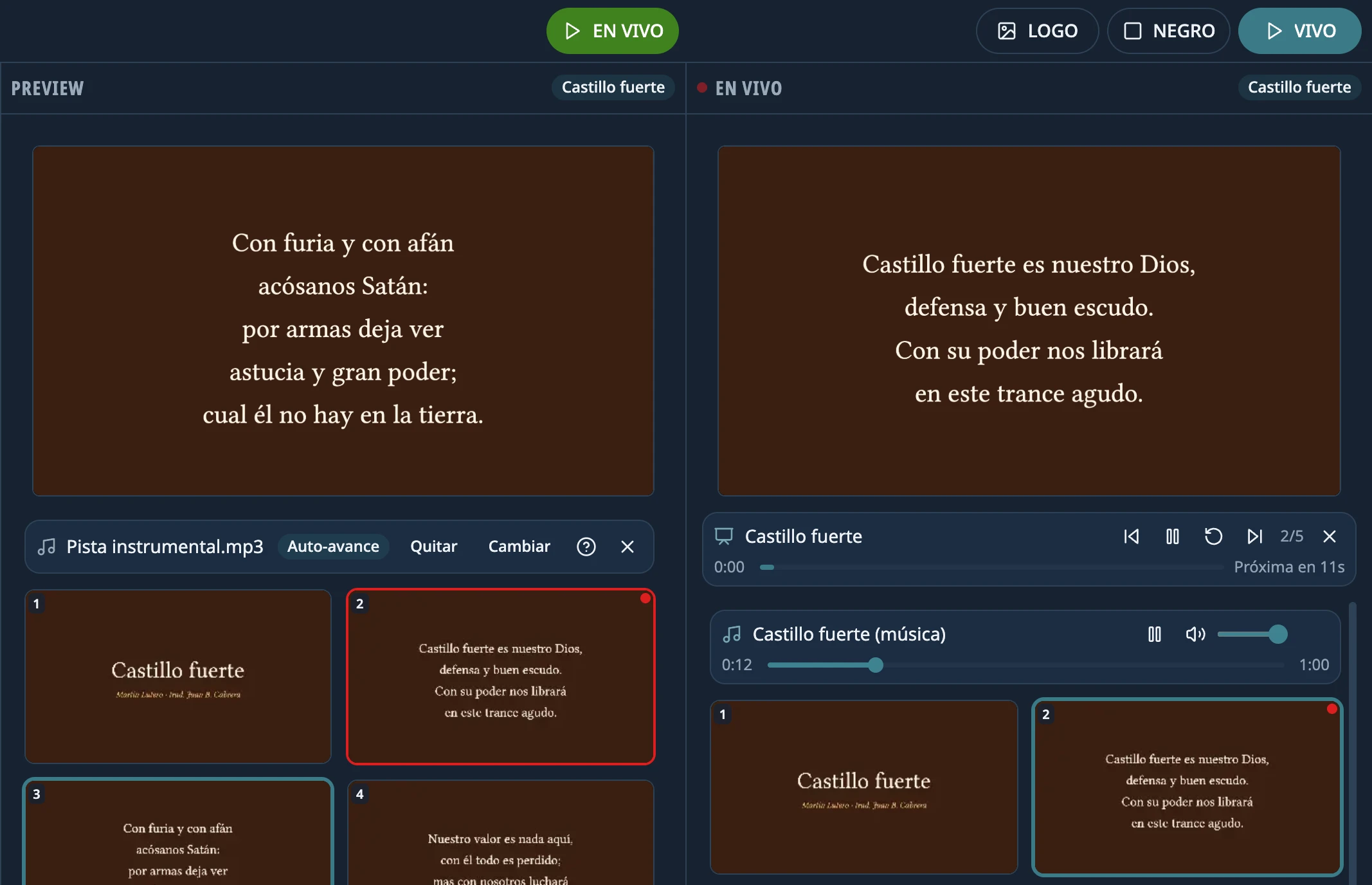
PowerPoint (.ppt, .pptx, .pps, .ppsx), OpenDocument and PDF. Auto-advancing .pps hymnals keep each slide's timing and the music embedded in them.
- Videos
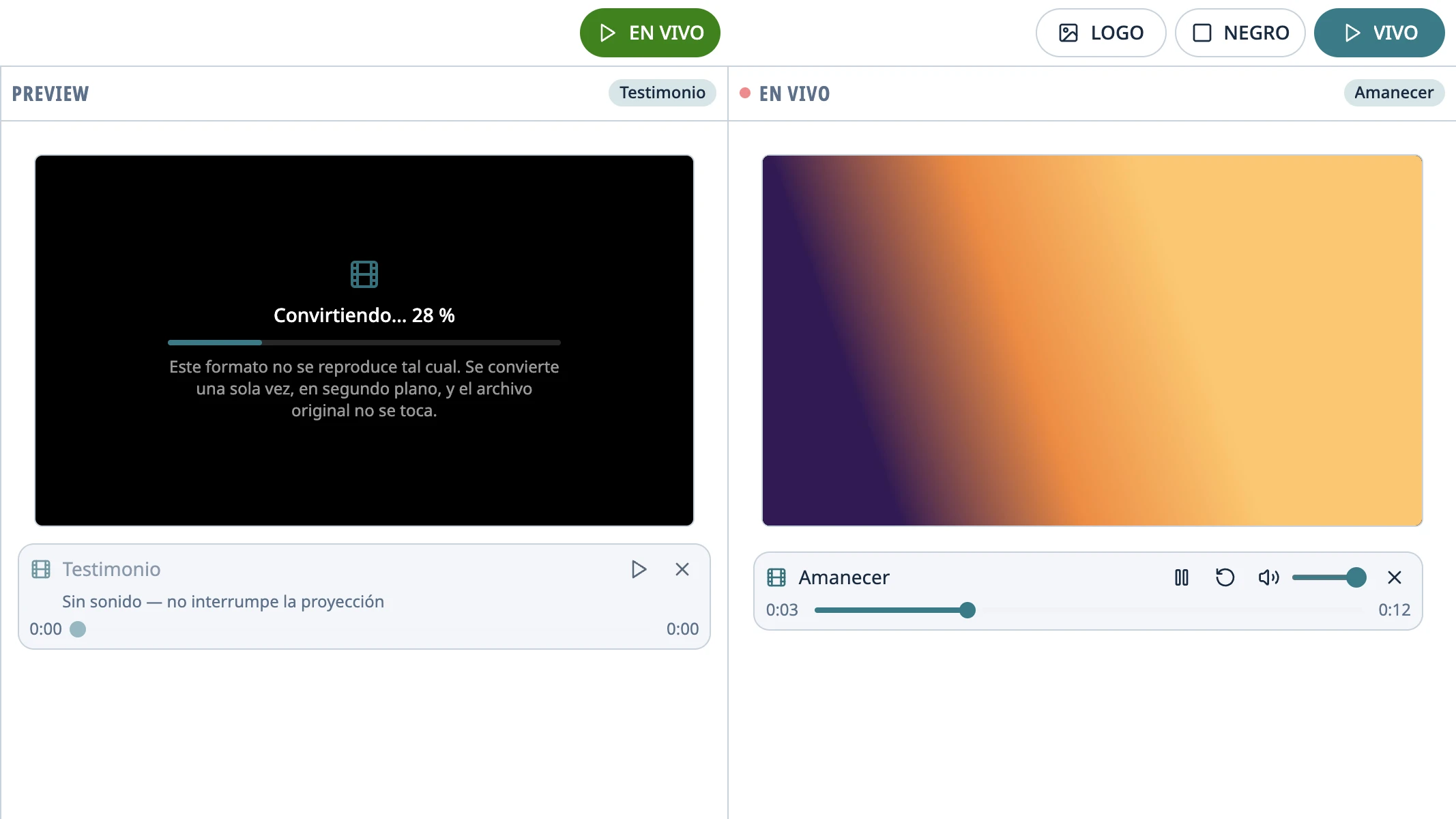
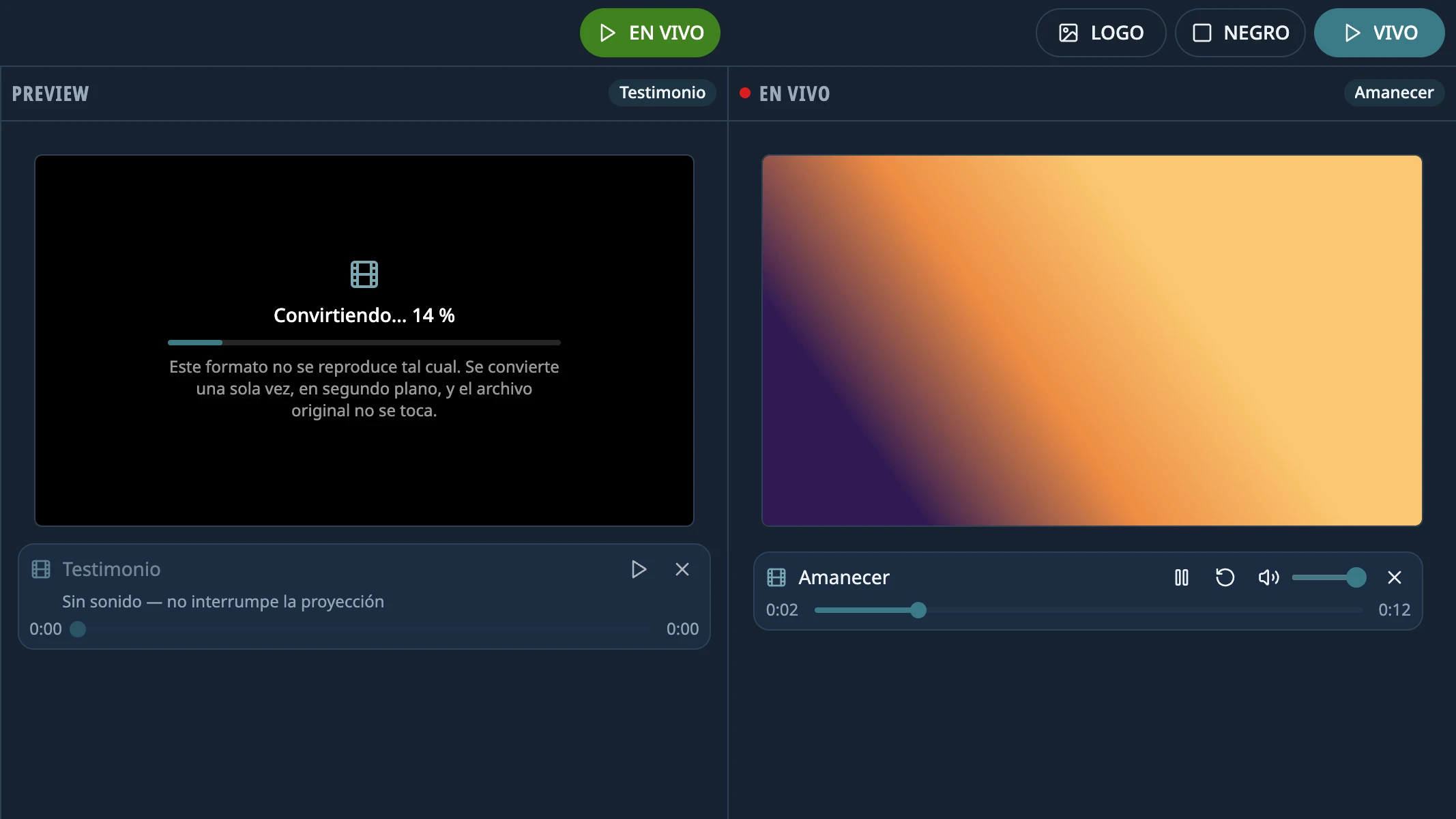
Any video, no codec hunting
Whatever the player can't open (AVI, WMV, ProRes, AC3…) is converted in the background by the bundled FFmpeg. Your original file is never touched.
- Bible
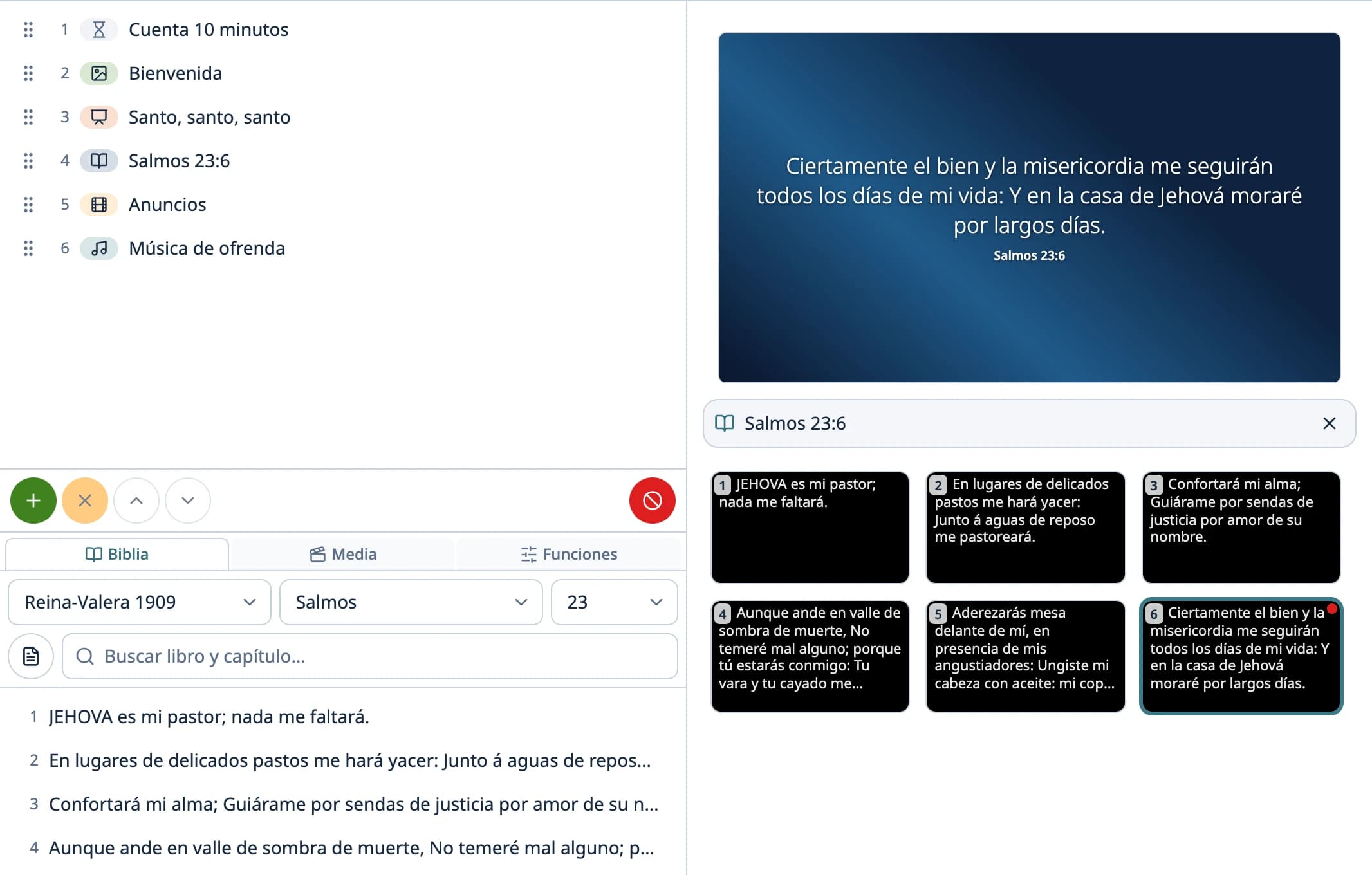
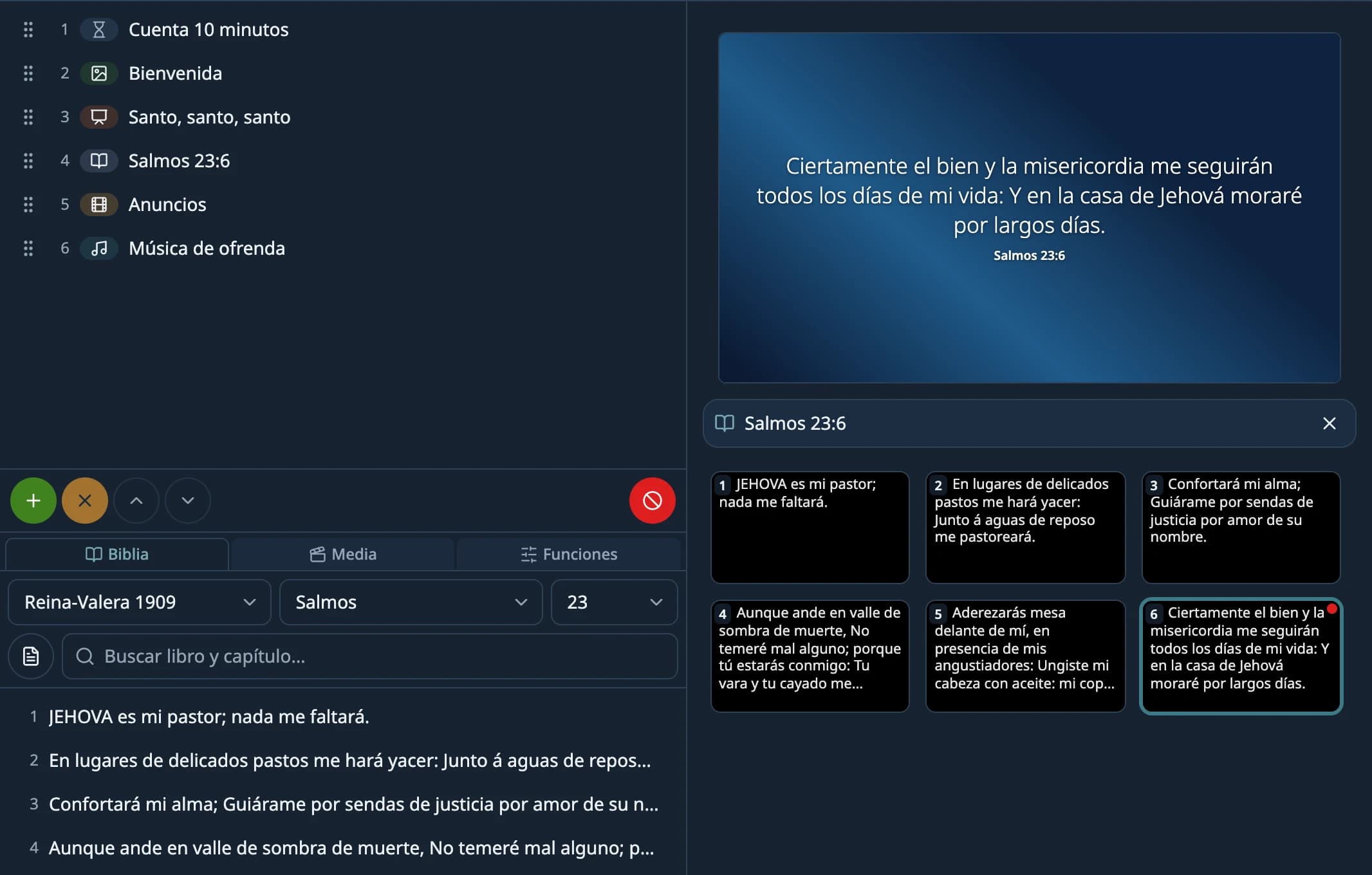
The Bible, one Enter away
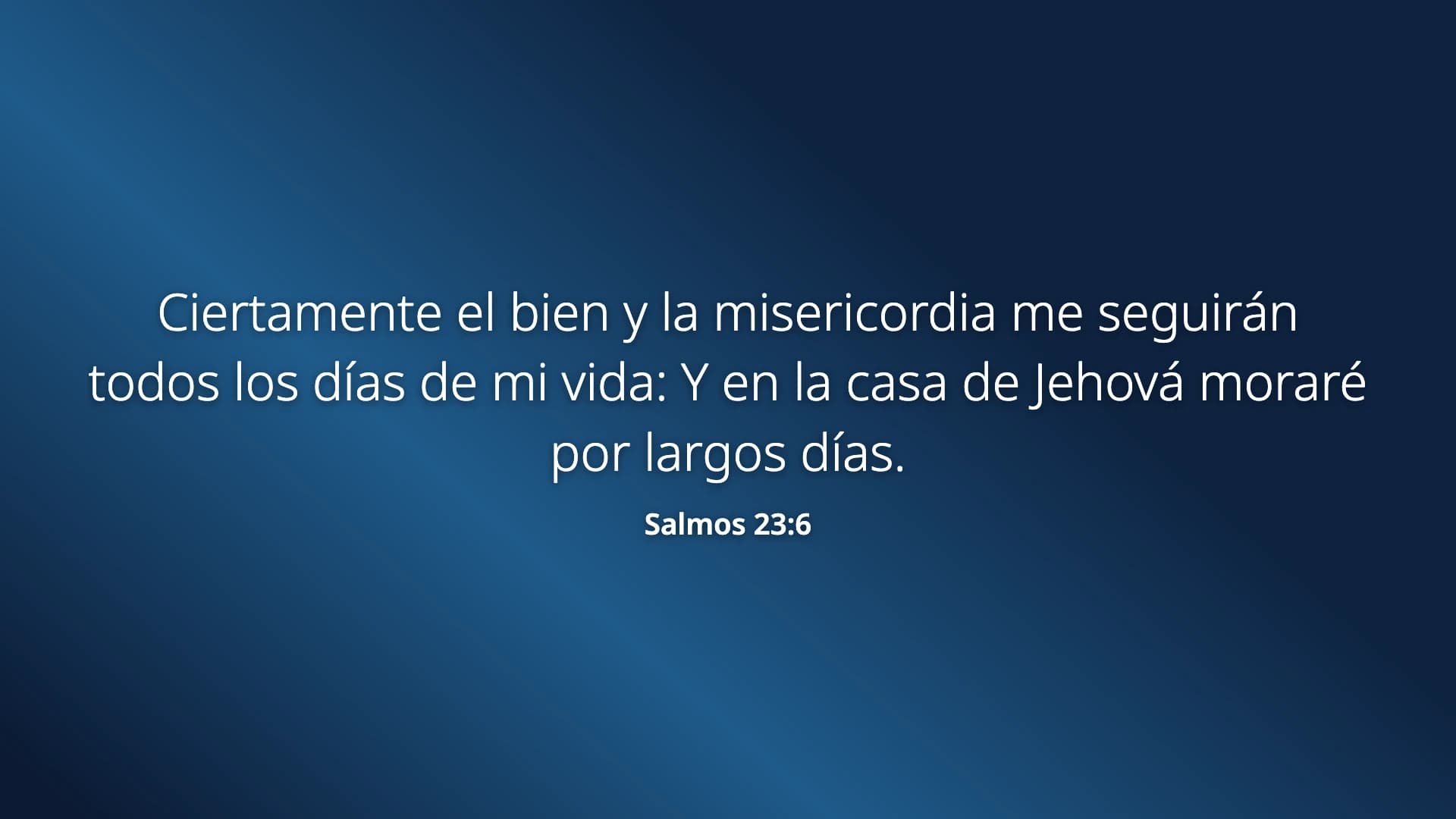
Type a book and chapter, or search the text for a phrase, and pick the verse. The Spanish Reina-Valera 1909 is included; an English Bible or any other version imports from JSON, Zefania, USFX, OSIS or MyBible and MySword modules.
- Timers
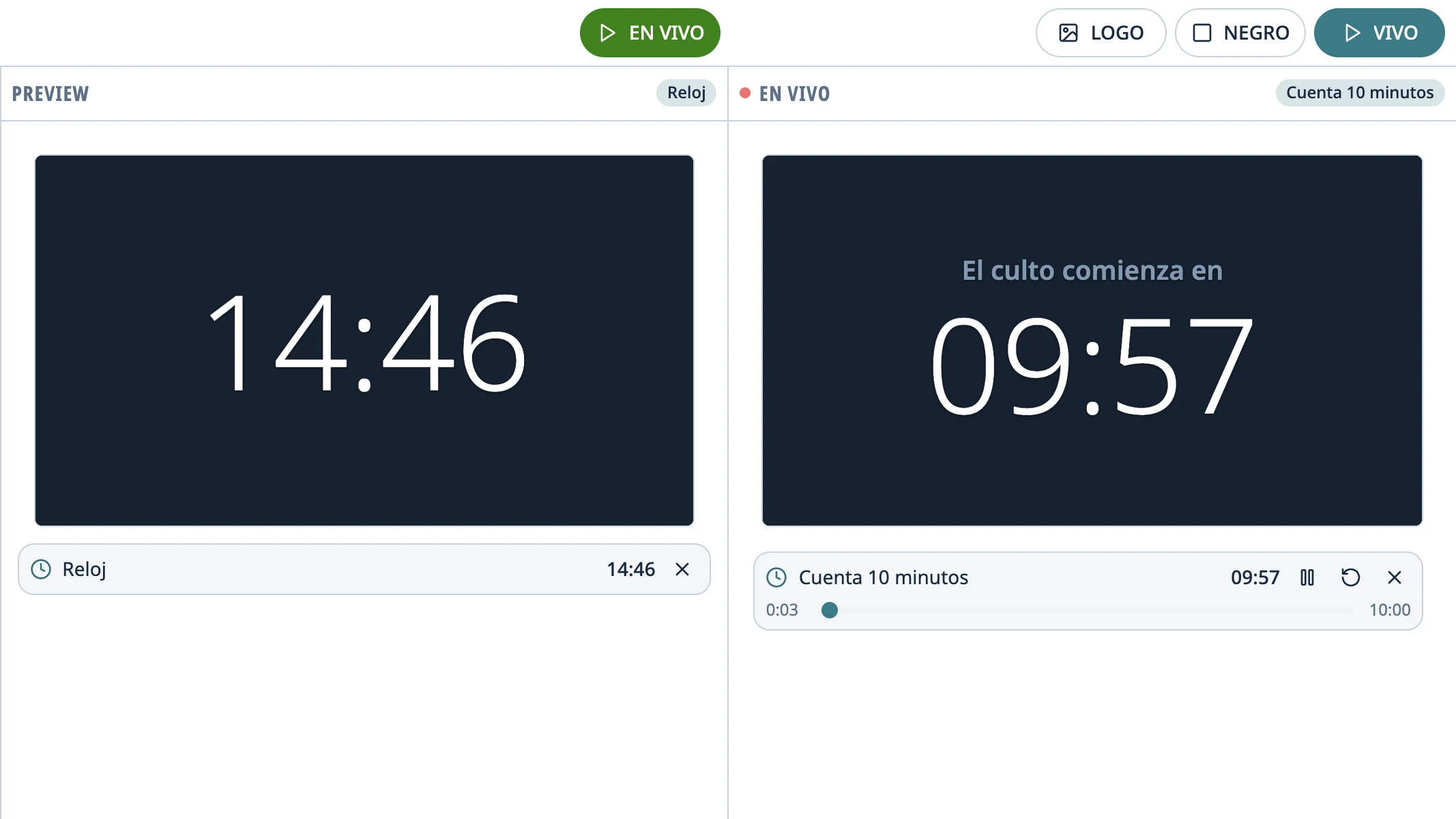
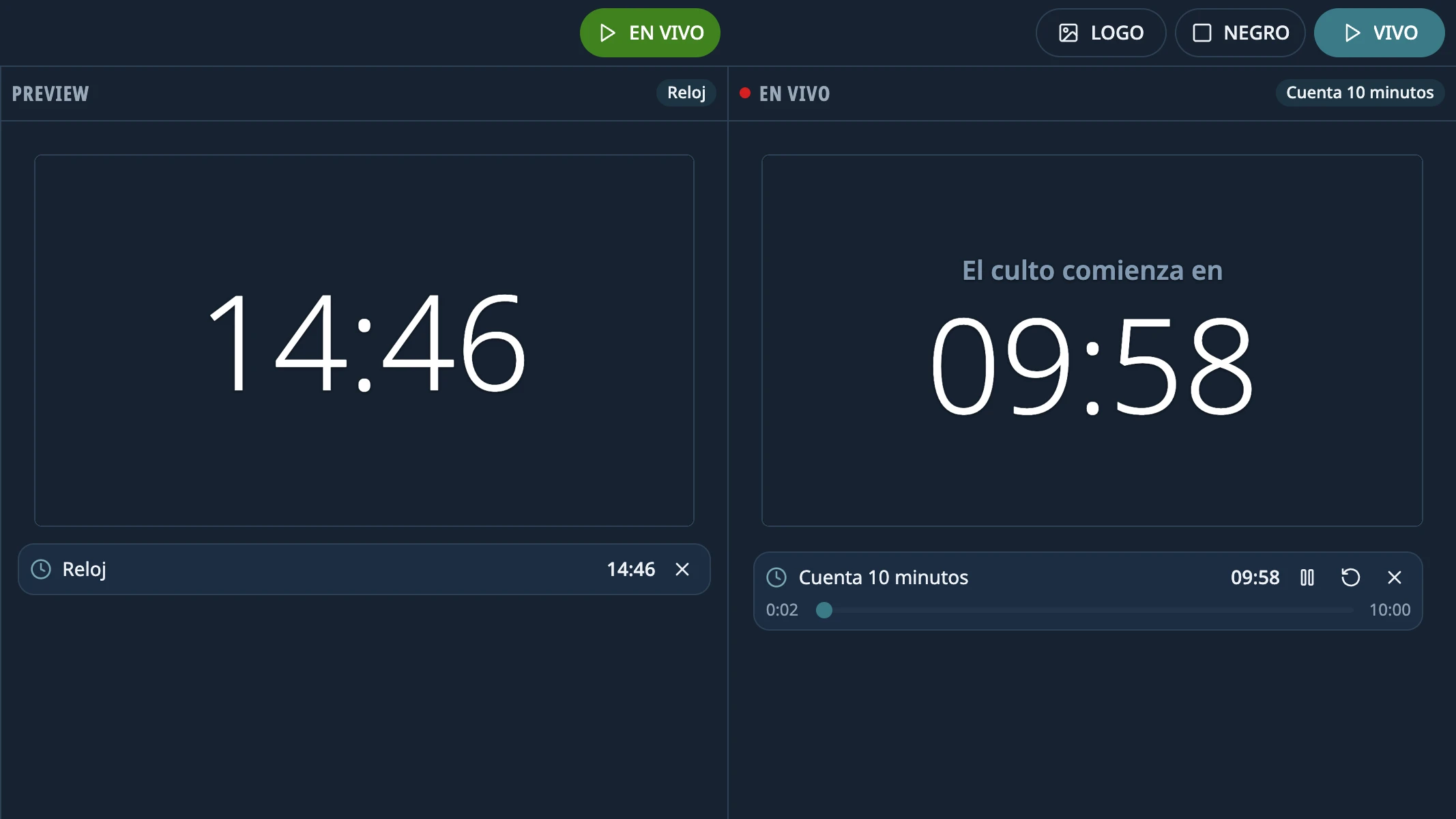
Timers and overlays
A countdown to the start of the service, a clock and a stopwatch. And overlays on top of whatever is projected: the preacher's name, the church logo.
- Projection
Built not to fail mid-service
If the projector drops out, the picture comes back by itself when it reconnects. The order of service saves itself. BLACK and LOGO pause whatever is playing and pick it up where it left off. And closing the app by accident asks first.
Download
Free, no account needed. Latest version: 2.2.0-beta.5
Install LibreOffice too
Lumina Live uses it to open PowerPoint presentations (.ppt, .pptx, .pps, .ppsx), hymnals included. It's free. If it's missing, the app notices and explains how to get it. PDFs don't need it.
The installers aren't signed yet, so you have to confirm the first time you open them. On Windows: “More info” → “Run anyway”. On macOS: System Settings → Privacy & Security → “Open Anyway”.
On Linux, Lumina Live is still experimental: in automated tests, the projection and control windows closed by themselves with a presentation on screen, which doesn't happen on Windows or macOS. Test it thoroughly before using it in a service.
Every version and its release notes are on GitHub (opens in a new tab).
User guide
First time? Follow it step by step, from installing to the service.
- Get startedWhat you needThe computer, the system, the second screen and the one extra program you need to use Lumina Live.
- Get startedFirst launchWhat Lumina Live comes with the first time, how to connect the projector and your first test, in five minutes.
- During the servicePreview and GO LIVEThe two-step flow: you choose and check in Preview, and the congregation only sees it once you click GO LIVE.
- During the serviceBefore the service: a checklistWhat to get ready the day before and check half an hour before, so nothing fails mid-service.
- TroubleshootingNothing shows on the projectorWhat to check when the projection doesn't appear, shows on the wrong screen, shows your screen or has frozen.
Questions
How much does it cost?
Nothing. Lumina Live is free software: install it on every computer at your church, with no licenses, accounts or subscriptions.
Do I need PowerPoint?
No. PowerPoint files are opened with LibreOffice, which is free too; if it isn't installed, the app notices and explains how to get it. PDFs don't need it.
Does it work offline?
Yes. Everything runs on the computer: no internet connection or account needed.
Which Bible version is included?
The Spanish Reina-Valera 1909, which is in the public domain. For an English Bible or any other version, import it from a file (JSON, Zefania, USFX, OSIS, or a MyBible or MySword module); it only takes a moment.
“Windows protected your PC”: is it safe?
It says so because the installers aren't signed yet. The code is public for anyone to review. On Windows: “More info” → “Run anyway”. On macOS: System Settings → Privacy & Security → “Open Anyway”.
Which languages is it in?
Spanish, English, Italian and Portuguese. It starts in your computer's language the first time, and you can switch any time in Settings › System. Translations into other languages are welcome.
How do I report a bug or help out?
On GitHub: open an issue saying what happened, or send a pull request. The contributing guide is in the repository.