
Project the Bible
Search by book and chapter or by a word, pick the verse and click GO LIVE.
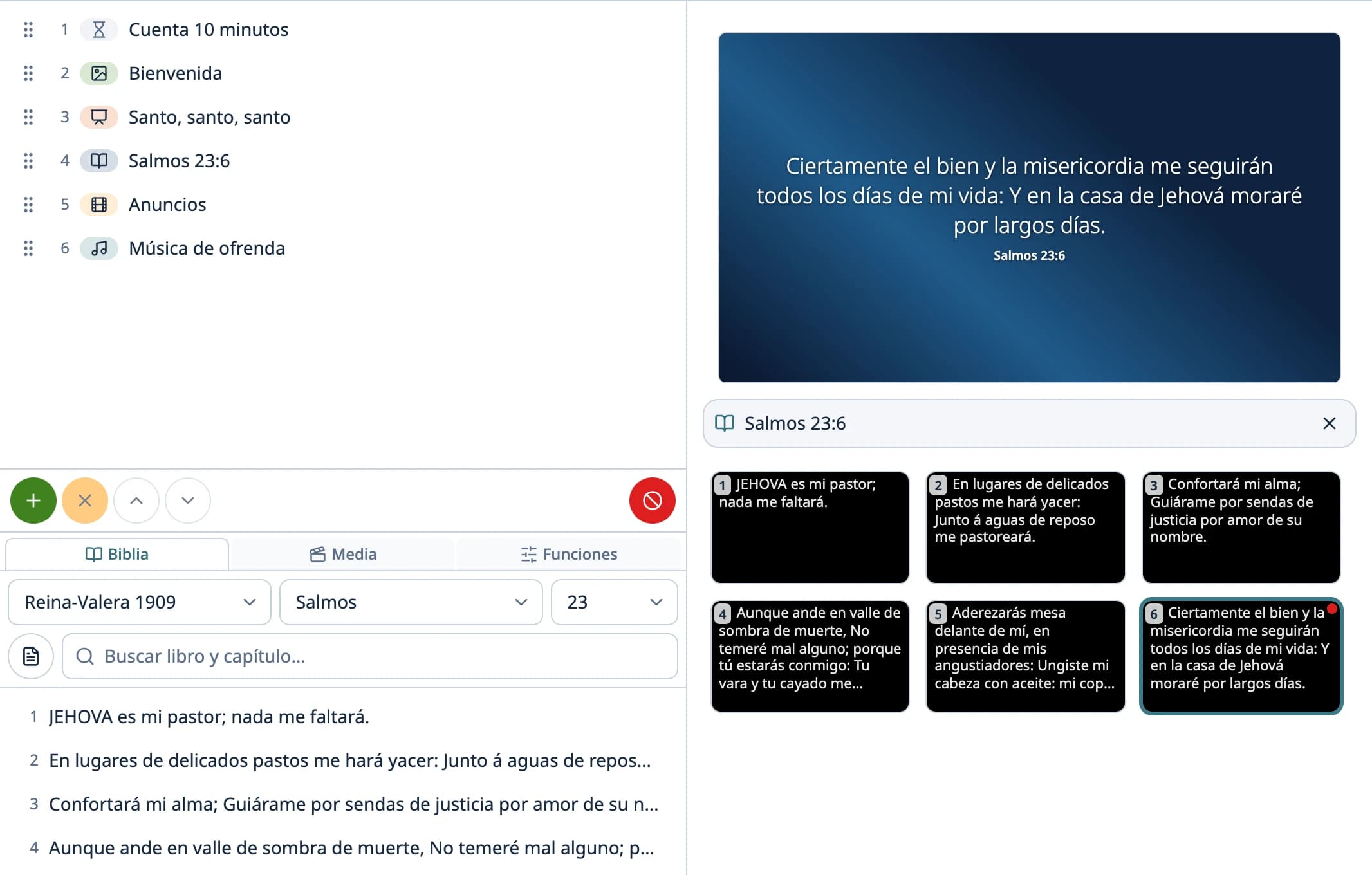
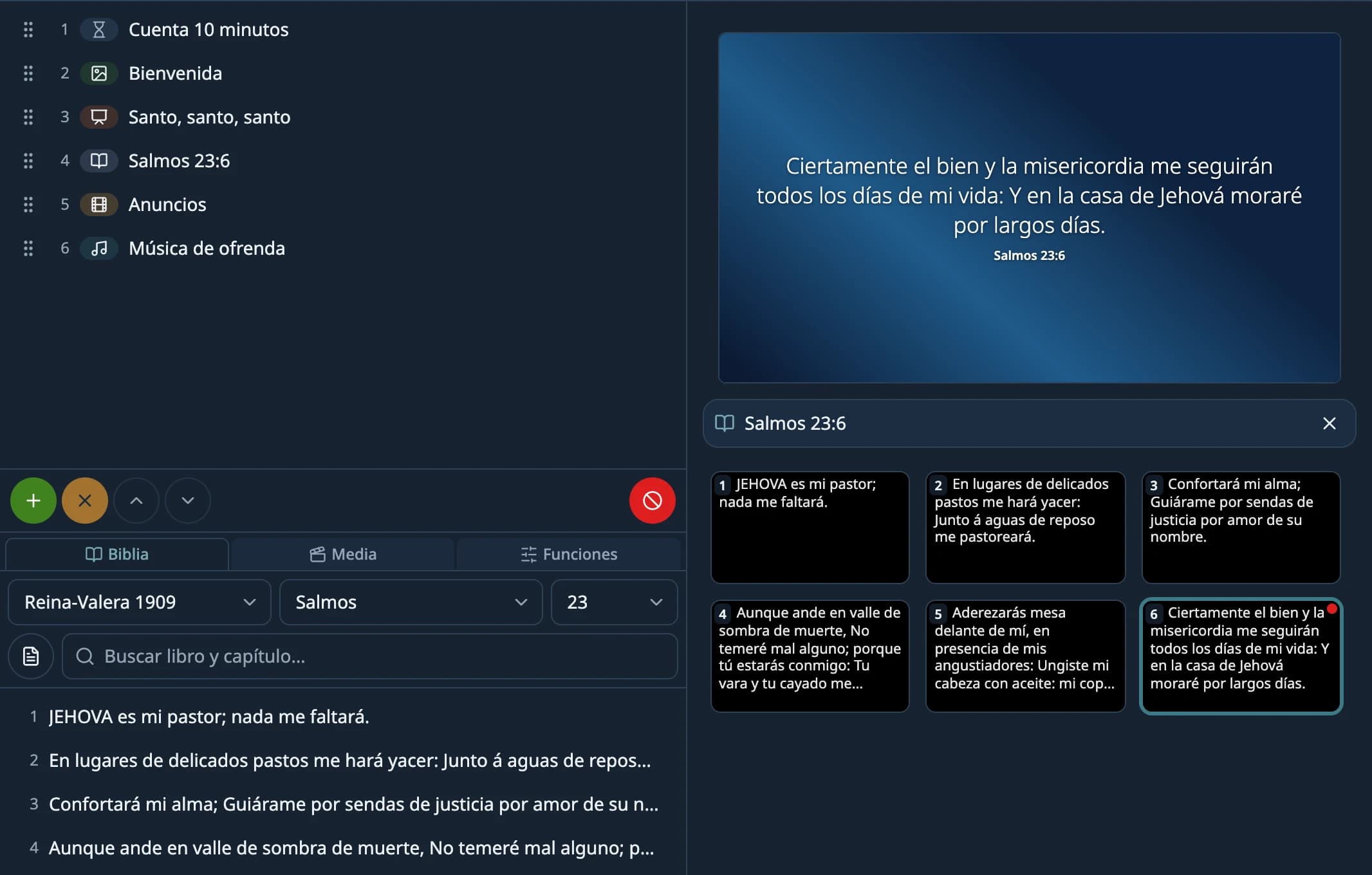
Find a chapter
In the Bible tab, type the book and chapter in the search box (Find book and chapter…) and pick from the list with a click or with Enter. You can also use the Book… and Ch… selectors.
- Type the book as your Bible version names it, then the chapter number. With the bundled Reina-Valera 1909 that's the Spanish name: “juan 3”, “salmos 23”, “1 corintios 13”. With an English Bible you imported, it's the English name: “john 3”.
- You don't need the full name or the accents: “gen 1” finds Génesis 1.
- The search doesn't take verses: “juan 3:16” gives no results. Find the chapter and pick the verse from the list.
Warning: Watch out for abbreviations: in the bundled Reina-Valera 1909, “jn” is Jonah (Jonás). For John, type “juan”.
Search for a word or phrase
The icon to the left of the search box switches to text search (Search text…). Type at least three letters: it searches every verse of the chosen version, ignoring accents and capitals, and finds the ones that contain all the words, in any order. A click on a result opens that chapter with the verse in Preview.
Project a verse
Click the verse: it appears in Preview.
Click GO LIVE or press Enter, or double-click the verse.
Move to the next or previous one with → and ←, or with Next and Previous, under the Live monitor.
- One verse is projected at a time.
- The arrows don't change chapters: after the last verse, find the next chapter.
- With ↓ and ↑ you get the next verse ready in Preview without touching the projector.
Warning: If you change chapter or version in the tab while a verse is live, the verse stays on screen but the arrows no longer move it. Choose the next one and click GO LIVE.
Verses in the schedule
With a verse in Preview, Add to schedule adds it to the end; you can also drag the verse onto the schedule. Each row keeps the text and the reference, and is projected on its own: the arrows don't move it.
To change how it looks (font, size, background, the reference), see How the verse looks. To add another version, see Other Bible versions.
Didn't work as the guide says?
Tell us on GitHub: what you did, what you expected and what happened. That's how the app, or the guide, gets fixed.
Share this guide:
WhatsApp (opens in a new tab)