
The control window
The three columns of the window you work in, and what each button on the top bar does.
The control window reads from left to right, in the order you work: choose, check and project.
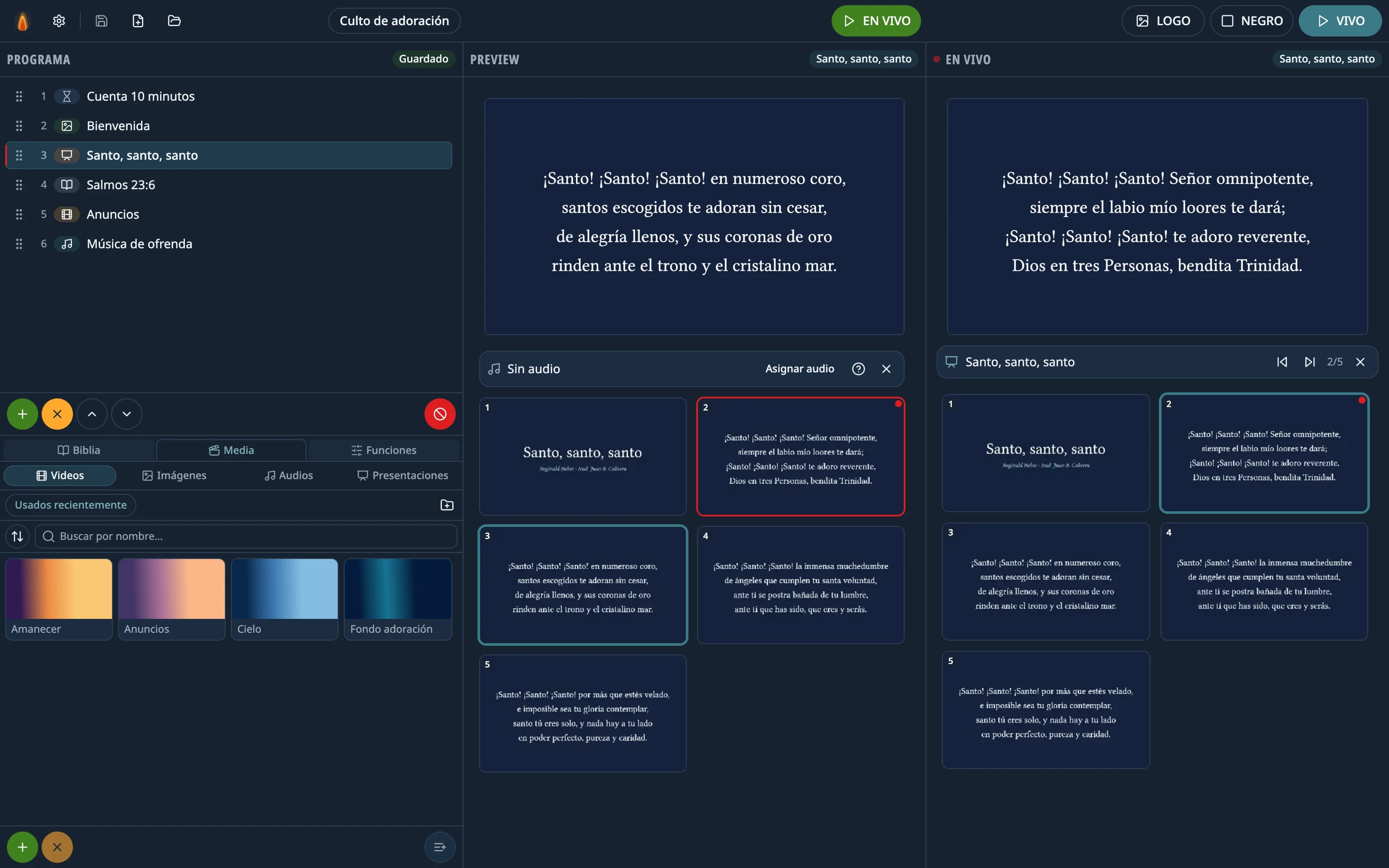
On the left: the schedule and the resources
- At the top, the Schedule: the order of service, from top to bottom. See Build the service schedule.
- Below it, three tabs: Bible, Media (videos, images, audio and presentations) and Functions (timers and overlays).
In the middle: Preview
What you choose appears on the Preview monitor. It's just for you: the congregation doesn't see it. Below it are the slides or verses of what you chose, so you can check them and pick where to start.
On the right: Live
The Live monitor shows exactly what the congregation sees. Below it are the controls for what's on air: moving through slides, pausing a video, the volume, and the grid of slides or verses.
- A pulsing red dot next to Live means something is being projected.
- If the header says Projector off, the projection window isn't open.
- BLACK or LOGO in the header tells you what's covering the screen.
The top bar
| Button | What it does |
|---|---|
| Gear: Settings | The options: the projector screen, the logo, the language and more. See Settings. |
| Floppy disk: Save | Saves the schedule. If you've never saved it, it asks for a name. |
| Page with a +: New schedule | Starts an empty schedule. |
| Folder: Manage schedules | Your saved schedules. |
| GO LIVE | Sends what's in Preview to the projector. |
| LOGO, BLACK and LIVE | What the projector shows: the logo, a black screen or what's live. |
Next to the buttons on the left is the name of the schedule you have open.
Tip: Red always means “this is on the projector now”: the red bar on a schedule row, the red border on a slide. Teal only marks what you've selected.
Didn't work as the guide says?
Tell us on GitHub: what you did, what you expected and what happened. That's how the app, or the guide, gets fixed.
Share this guide:
WhatsApp (opens in a new tab)