
Presentations and hymnals
PowerPoint, PDF and hymnals with auto-advance and music: how they're converted, how you move through them and what's kept.
Lumina Live opens PowerPoint (.ppt, .pptx, .pps, .ppsx), Impress (.odp) and PDF presentations. You'll find them in Media › Presentations.
The conversion
The first time you open a presentation, the app converts it into images, one per slide (“Converting slides…”). It happens only once per file: after that it opens instantly, even if you move it to another folder. If you edit the file, it converts again by itself the next time you open it.
- PowerPoint and
.odpfiles need LibreOffice to be converted; PDFs don't. - A presentation that's already converted can be projected even without LibreOffice.
- If you send it live before it finishes, the projector keeps what it had and switches as soon as it's ready.
Convert everything ahead of time
Open Media › Presentations.
Click Prepare folder, at the bottom. It only appears if some presentations aren't converted yet.
Confirm with Prepare. They're converted one at a time, in the background, and you can keep using the app.
What's kept and what isn't
| In the original file | In Lumina Live |
|---|---|
Auto-advance timings (.pps hymnals) | Kept. |
| Embedded music | Plays, one track per presentation. |
| A video inside a slide | Plays in .pptx and .ppsx; in .ppt and .pps you get the still image. |
| Hidden slides | Not shown. |
| PowerPoint animations and transitions | Not played: each slide is a still image and the change between slides is a straight cut. |
.odp and PDF | No auto-advance. |
Move through the slides
- → and ←, or Next and Previous under the Live monitor.
- A click on a slide in the Live grid jumps there instantly.
- A double-click on a slide in Preview sends the presentation live from that slide.
Auto-advance and music
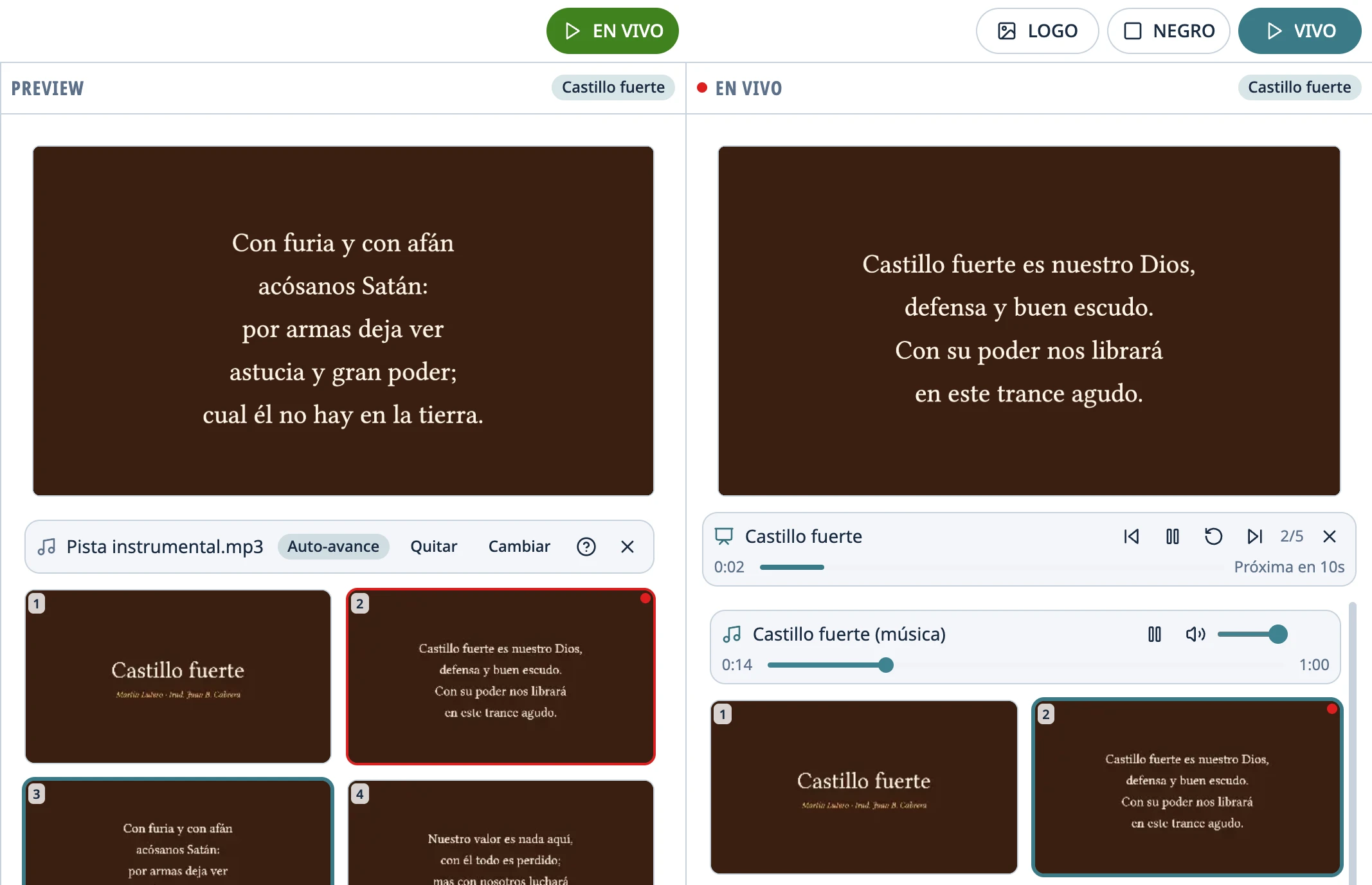
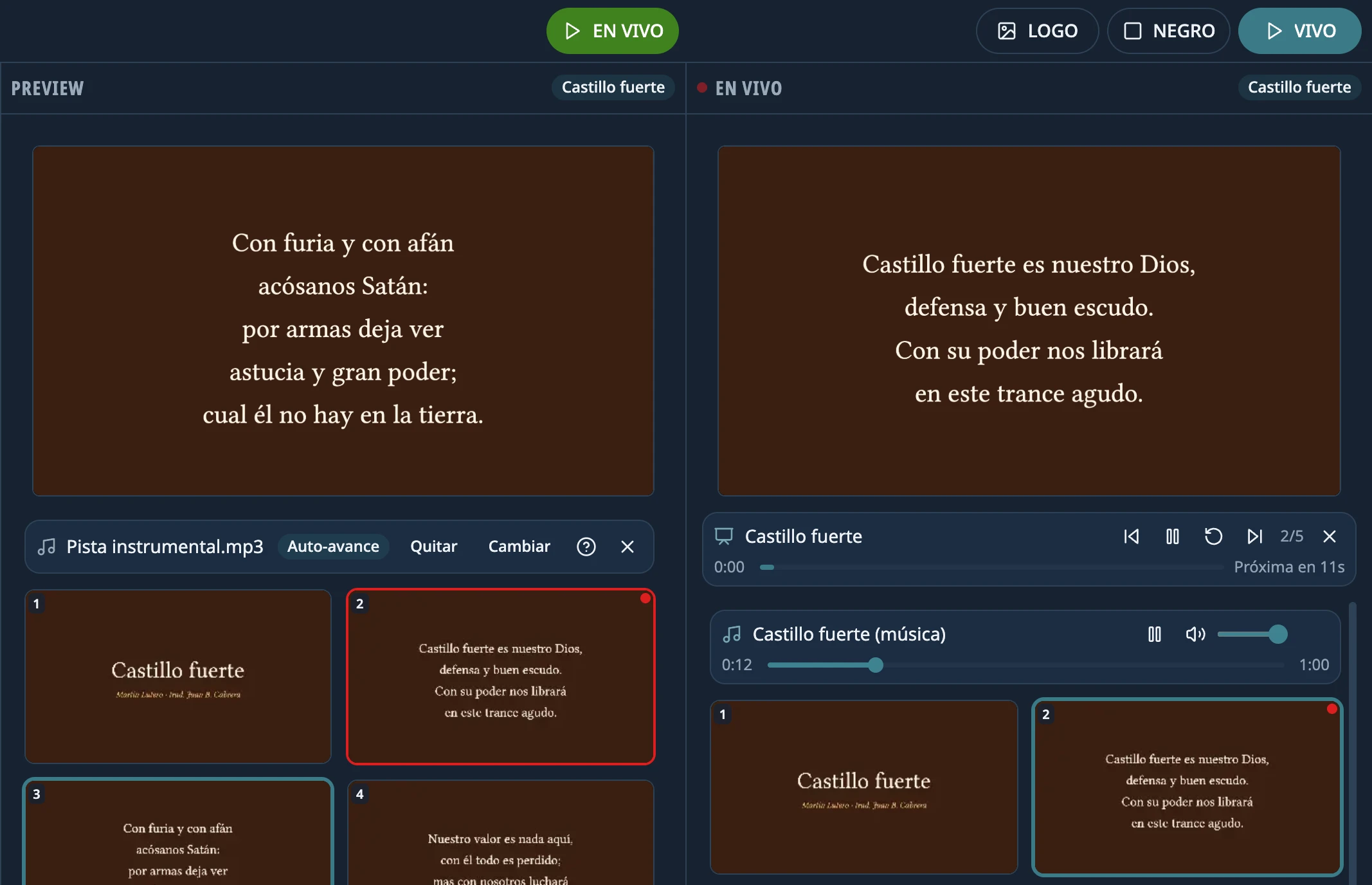
If the presentation has timings, Auto-advance appears under Preview and, once it's live, it advances by itself. With music, the slides follow the music.
- Space, or Pause and Play on its bar, stop and resume the advance (and the music).
- Restart goes back to the first slide and plays the music from the beginning.
- If you move through slides by hand, the advance carries on from there; Resync goes back to the slide that matches the music.
- BLACK and LOGO pause the music and freeze the advance; when you come back, it carries on where it was.
- When the last slide, or the music, ends, the presentation goes off the air and the logo stays. A presentation without timings never goes off by itself.
Add music to a presentation
If the presentation has no music of its own, the app looks for an audio file with the same name in its folder. You can also choose one: on the audio strip in Preview, click Add audio (mp3, wav, ogg, m4a, aac, flac or opus). Later you can Change or Remove it. Music that comes inside the file can't be changed.
If something doesn't work, see A presentation won't open or looks different.
Didn't work as the guide says?
Tell us on GitHub: what you did, what you expected and what happened. That's how the app, or the guide, gets fixed.
Share this guide:
WhatsApp (opens in a new tab)