
Countdowns, clock and stopwatch
Project a countdown before the service, the time or a stopwatch, and build your own timer scenes.
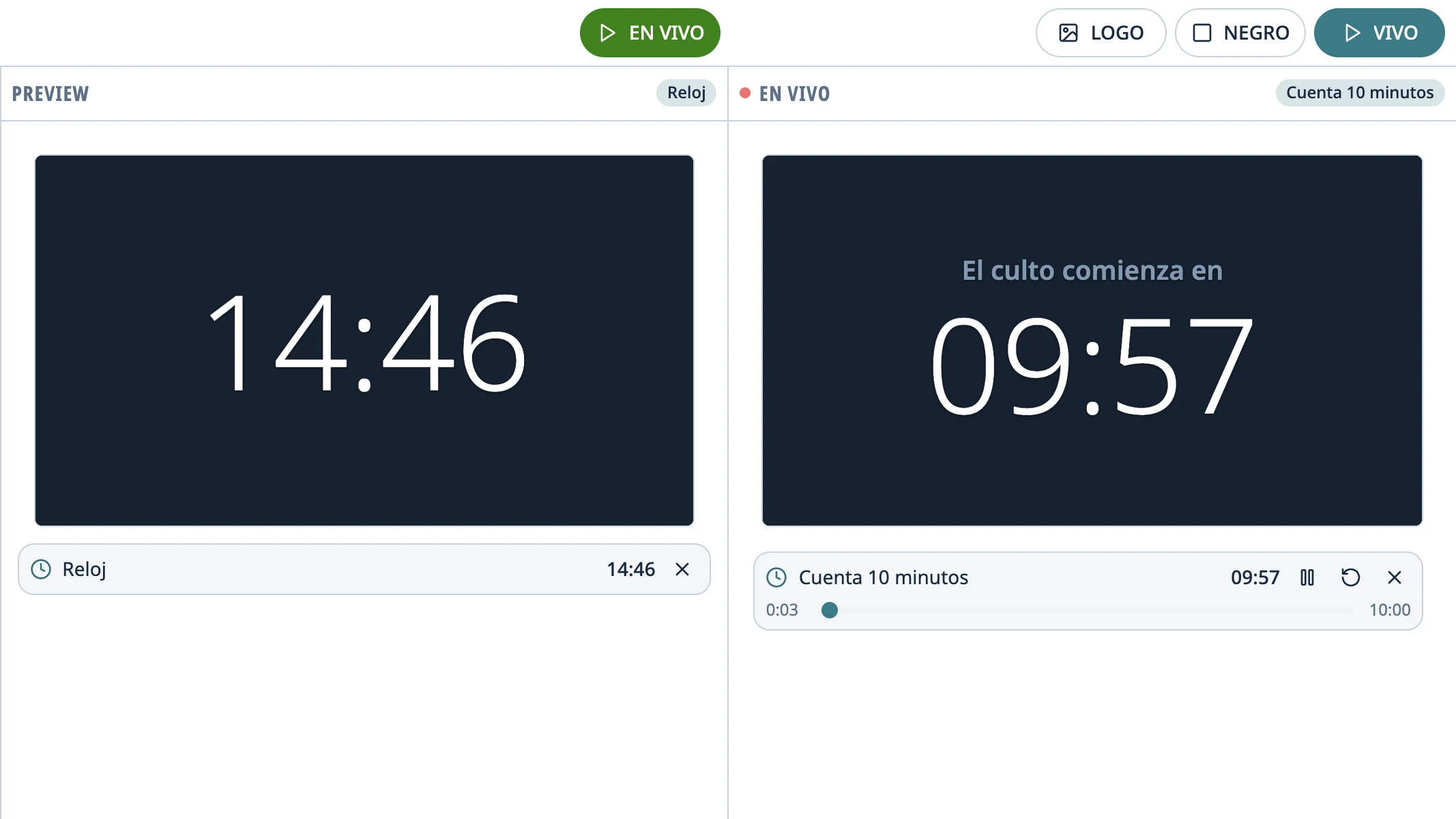
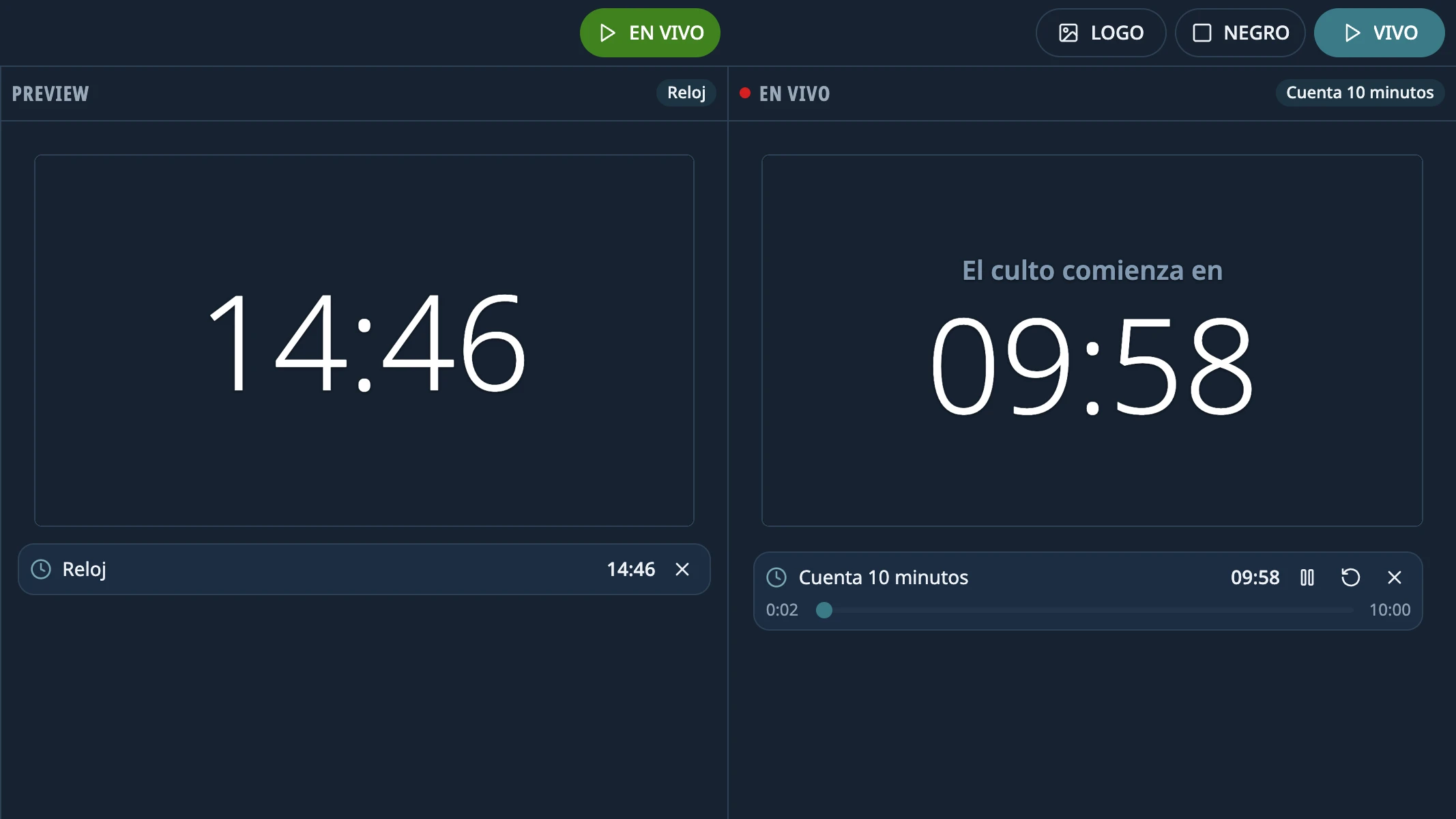
The timer scenes are in Functions › Timers. The app comes with four: “10-minute countdown”, “10:00 start”, “Clock” and “Stopwatch” (named in the language it first opened in). You can edit, duplicate or delete them, and create your own.
| Type | What it shows |
|---|---|
| Countdown | Counts down from a duration, for example 10 minutes. |
| Countdown to time | Counts down to a time today, for example to 10:00. |
| Clock | The computer's time. |
| Stopwatch | Counts up from zero. |
Project a scene
Click the scene: it appears in Preview, standing still.
Click GO LIVE. A countdown or stopwatch that was never started starts by itself.
With its controls, under Preview and in the Live panel, you can Pause, Resume or go back to the start. On a countdown, drag the bar to add or take away time.
You can also start it in Preview, without projecting it, and send it live later: it carries on from where it was.
When it reaches zero, the scene changes by itself depending on how it's set up: a message (“Welcome!” in the ones the app comes with), warning colors, or the number disappearing.
Create or edit a scene
Click Scenes…, below the list.
Click New scene or choose one from the list.
Choose the Type and fill in the time. In Duration, “10” means ten minutes;
MM:SSandH:MM:SSwork too. In Time, a time today in 24-hour format, like10:30.Type the top line and the bottom line (for example, “Service begins in”) and choose the background, the font and the colors. The preview shows how it looks; Preview the end shows how it looks at zero.
Save with the floppy disk.
Countdowns also have:
- End message replaces the bottom line when it reaches zero.
- Colors as it nears zero changes the number's color when time is almost up and when it runs out.
- Count below zero keeps counting after zero.
Tip: Saving a scene that's live updates the projector without interrupting the count. Changing its Type, though, restarts it.
Scenes go in the schedule too: select one and click Add to schedule, or drag it.
Didn't work as the guide says?
Tell us on GitHub: what you did, what you expected and what happened. That's how the app, or the guide, gets fixed.
Share this guide:
WhatsApp (opens in a new tab)