
Videos, images and audio
Which formats it opens, how it converts the ones it can't play, and how to handle the volume and background music.
You'll find them in Media › Videos, Images and Audio.
Add files
- Click Add (at the bottom) or drag files onto the grid: each one goes to its tab by type.
- Link folder shows everything in a folder, read from the disk each time. Unlink folder doesn't delete any file.
- Recently used shows what you've added to the library.
- Above the grid you can Sort and Search by name….
The library doesn't copy your files: it keeps track of where they are. Removing something from the library never deletes it from the disk, and for a few seconds you can click Undo.
Any video, no codec hunting
Common formats (MP4, MOV, MKV, WebM, MP3, WAV, FLAC…) play as they are. Whatever can't be played that way (AVI, WMV, MPG, ProRes, AC3…) is converted automatically, in the background, by the bundled converter. The original file is never touched.
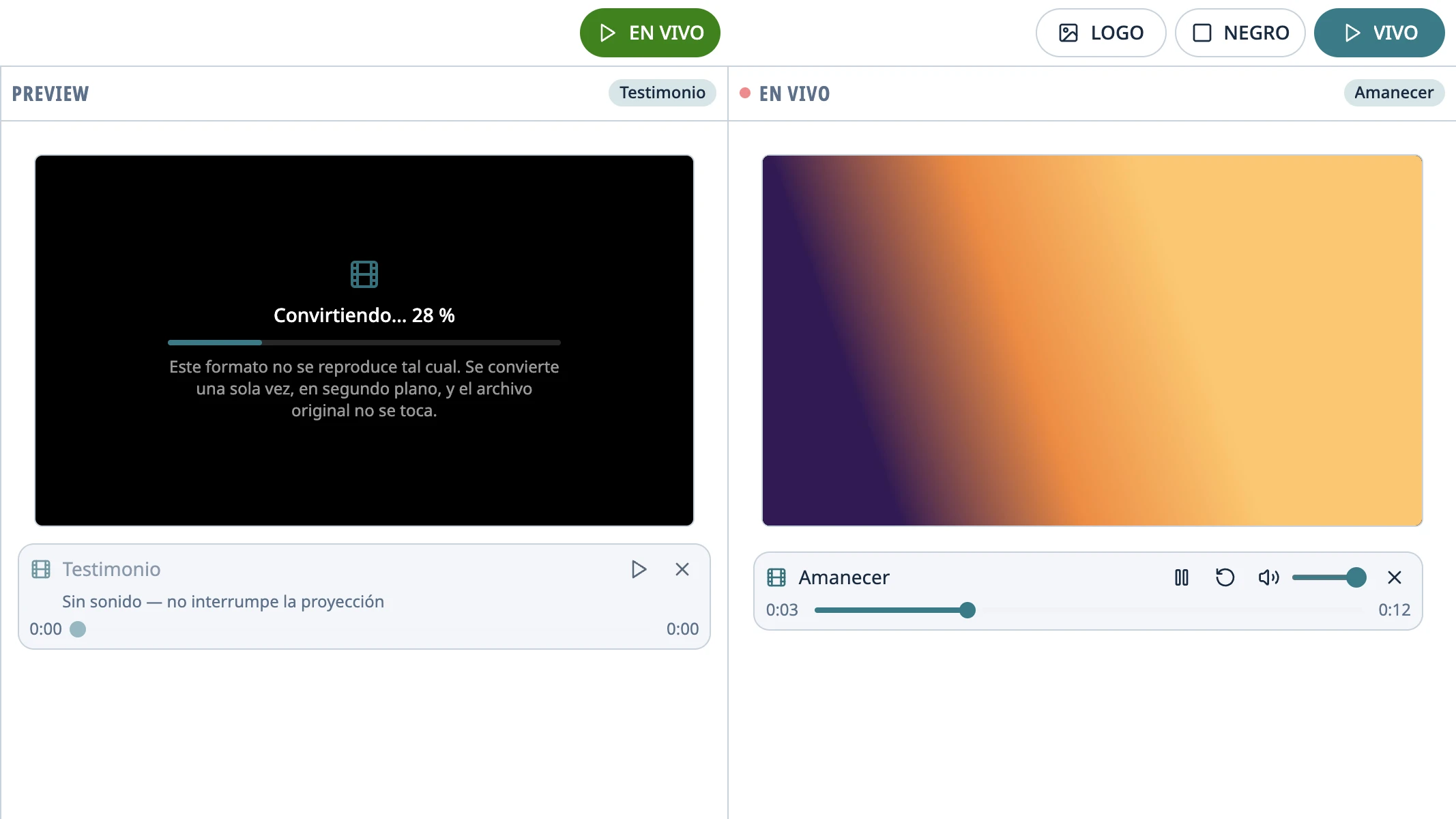
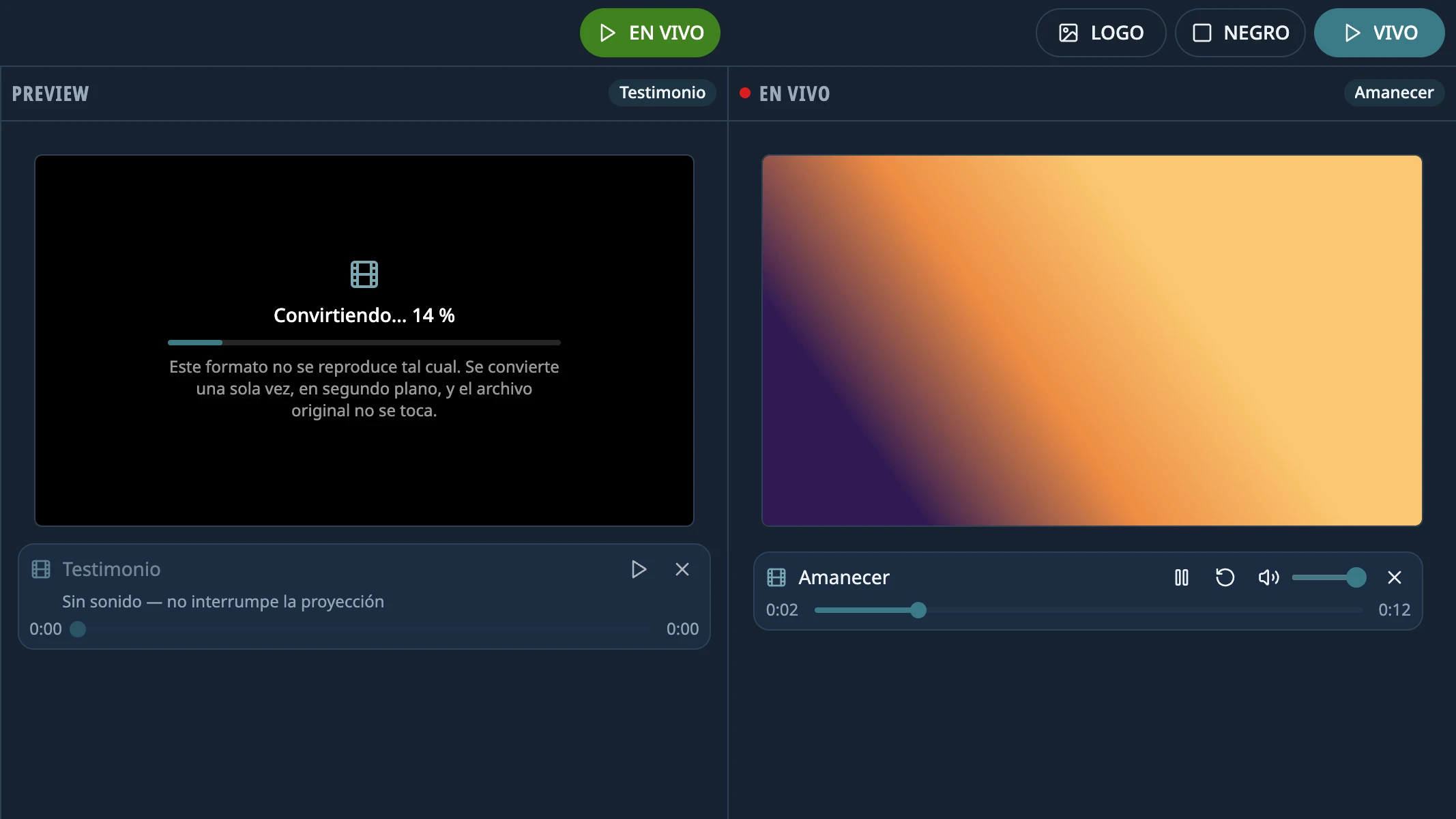
- While it converts, Preview shows “Converting… N%” and the schedule row says Converting.
- Opening the file in Preview moves it to the front of the queue.
- Until it finishes, it can't GO LIVE: the app tells you so and the projector doesn't change.
- If it fails, Not converted appears with the reason; try Retry.
A video on air
- Under the Live monitor: Pause, Play, Restart, a bar to skip forward or back, the volume and Mute.
- In Preview, a video can play without sound, so you can check it without interrupting what's playing.
- Every video starts at the Starting volume set in Settings › Projection (100% out of the box).
- BLACK and LOGO pause the video; when you come back, it carries on where it was.
- When it ends, it goes off the air and the logo stays. There's no option to loop it.
Images
They're shown whole, never cropped, with black bars if their shape doesn't match the screen's. JPG, PNG, GIF, WebP and BMP.
Audio and background music
- An audio file sent live is added as sound: it doesn't change the picture or take you out of BLACK or LOGO, and several can play at once.
- It keeps playing even if you change what's live, and through BLACK or LOGO.
- In Preview it doesn't play: its bar only picks where it starts.
- Stop it with Stop, on its row in Live, or with Clear live content.
Tip: Sound comes out of the computer's audio output. To send it through the projector or the church's speakers, choose them in the system's sound settings.
Didn't work as the guide says?
Tell us on GitHub: what you did, what you expected and what happened. That's how the app, or the guide, gets fixed.
Share this guide:
WhatsApp (opens in a new tab)